Set up the evenclo app for your event
Choose which screens the attendee app shows and what they are called, add your logo, splash and colours, and give people a way to get help.
Attendees use the evenclo app for your event: their agenda, their badge, the venue map, meetings, alerts and more. Once they sign in and pick your event, the app carries your brand. The Mobile app page decides what they see.
Changes reach a phone the next time the app is opened.
Steps
- Open Mobile app in the sidebar.
- Under What the app shows, switch screens on or off and rename them.
- Under Your brand in the app, add your logo, splash screen and colours.
- Fill in Getting help on the day.
- Choose the carousels on The home screen.
- Press Save.
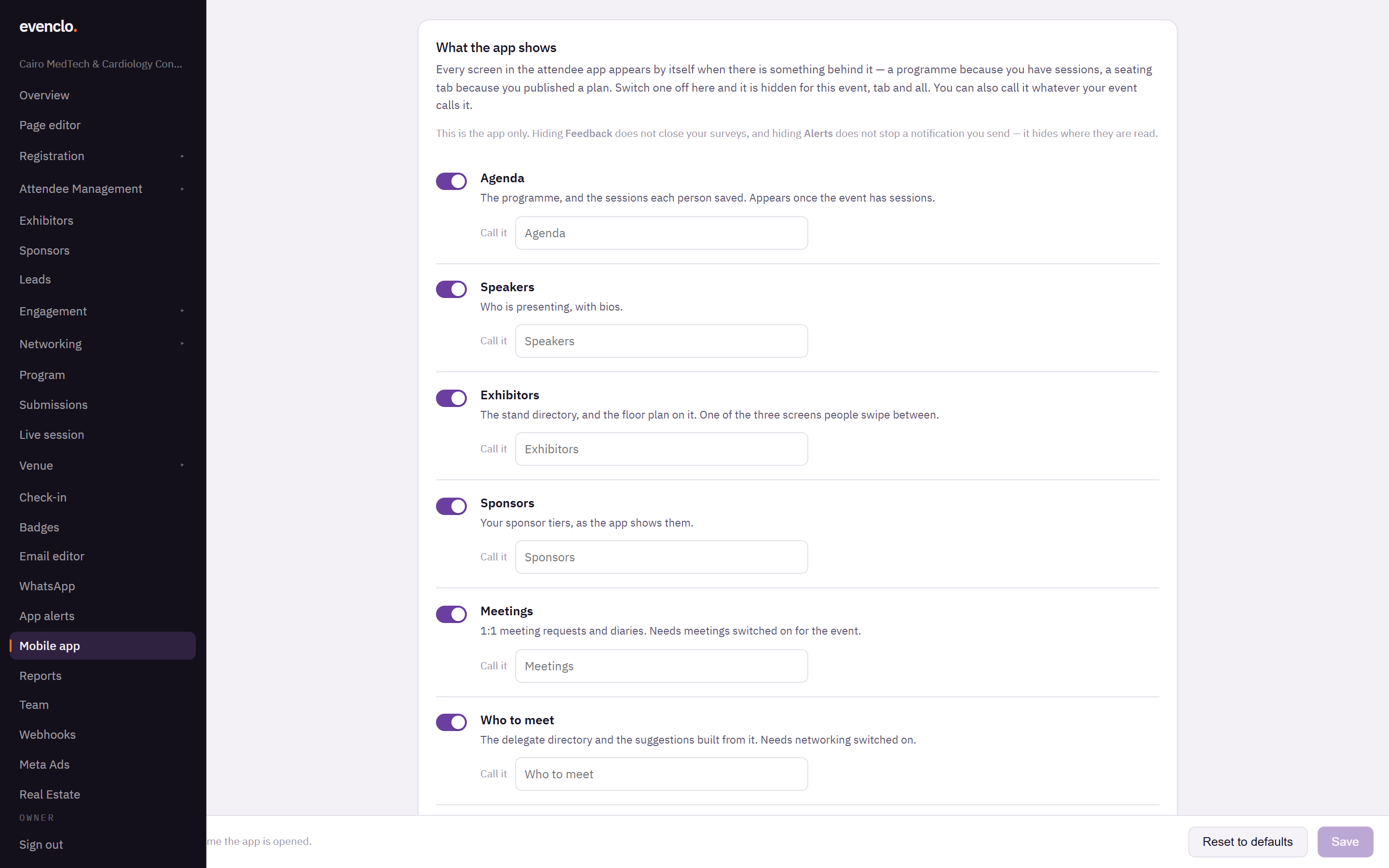
Mobile app page listing each app screen with its switch and name, and the brand settings
What the app shows
Every screen appears by itself as soon as there is something behind it: an agenda once you have sessions, a seating tab once you publish a plan, a rewards tab once a perk is live. A screen marked nothing to show yet will appear when its content exists.
Switch a screen off to hide it for this event, tab and all. Use Call it to rename it to whatever your event calls it — "Programme" instead of "Agenda", for example.
This only changes the app. Hiding Feedback does not close your surveys, and hiding Alerts does not stop a notification you send. It only hides where people read them.
Your brand in the app
- Logo — PNG or SVG, wider than it is tall. It appears on dark and light backgrounds, so pick a version that works on both.
- Splash screen — a PNG of exactly 1242 × 2688 pixels, shown full screen for a moment after the attendee picks your event. Keep anything important away from the edges.
- Main colour — buttons, headings, the menu and the band across the badge.
- Accent colour — what is happening now, such as a live session or an unread alert. If your accent is too pale for the app's light background, the app shows a deeper shade and the page tells you so.
The logo and the two colours are your event brand, shared with your website. Changing them here changes the site too.
The sign-in screen always stays evenclo's. Until someone signs in, the app does not know which event they are coming to.
Getting help on the day
Add a Desk phone and a Help email. The app shows them on the attendee's own screen: the phone dials with one tap, and the email opens with the event already in the subject. Use a phone somebody is actually holding during the event. Leave both empty and the app shows nothing.
The home screen
Choose which carousels the first screen carries: Sessions, Speakers, Exhibitors, Sponsors. A carousel can be off while its tab stays on, which suits an event with hundreds of exhibitors that should not fill the opening screen.
Common problems
A screen I switched on is not showing. It has nothing behind it yet. The label says nothing to show yet until it does.
An attendee still sees the old colours. They need to close and reopen the app.