Help center / Registration & ticketing
Let attendees share "I'm attending" posts
Design a card that attendees post to LinkedIn or X with their own name and photo on it, right after they register.
After registering, an attendee can press Share on LinkedIn or Share on X, sign in with that platform, and post your event's card with their own name and profile photo drawn on it. They can edit the caption before it goes out. Every post is free promotion from someone their network trusts.
Facebook and Instagram are not offered. Neither lets an app post to a personal profile with a caption filled in.
Steps
- Open Registration → Share card.
- Check that LinkedIn and X show as connected. A platform that says Waiting for API keys is not available yet — see below.
- Switch on Offer sharing on the thank-you page.
- Under Design, choose a Format (square or landscape), upload a Background image or pick a colour, then drag the photo and the name into place. Type a long name into Preview name to check it fits; a name that does not fit is shrunk until it does.
- Write the Caption in English and Arabic. Click a tag such as
{{event_title}}or{{event_link}}to insert it. The counter shows how many characters are left on X. - Press Save.
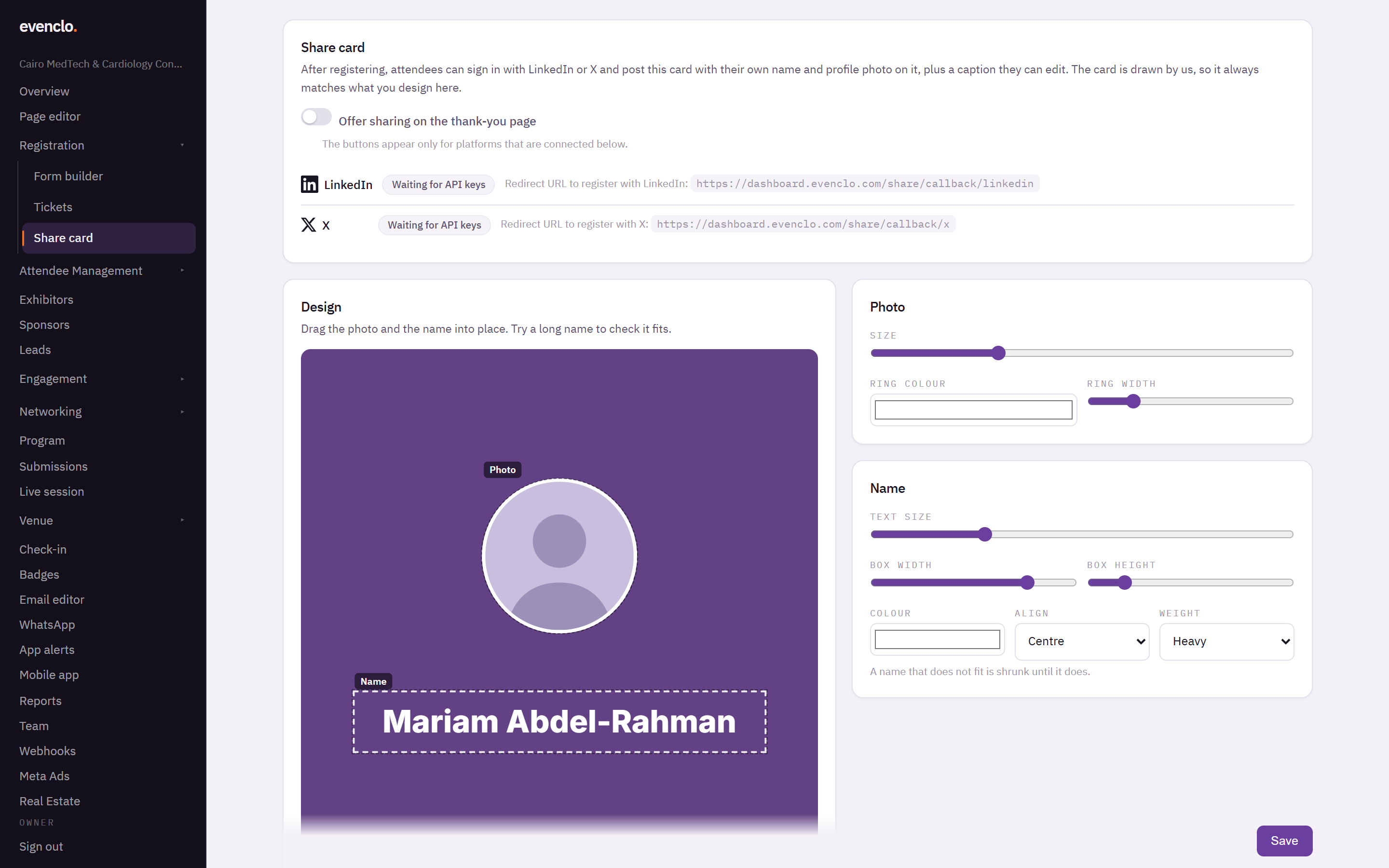
Share card page with the card design, the photo and name settings and the caption
Design your background at the format's exact size: 1200 × 1200 for square, 1200 × 675 for landscape.
Where attendees see the buttons
- On the thank-you page right after registering, and on the page they return to after paying.
- From their confirmation email. Add
{{share_link}}to a custom template and it becomes a link to the share buttons. It is blank when sharing is off.
Only confirmed registrations get the buttons.
What we post
The attendee writes the caption; the picture is always your card, drawn by evenclo with the name and photo the platform returned. Nobody can use your card to post a different image.
We never keep the attendee's LinkedIn or X login. It is used for that one post and thrown away. Posts lists who shared and links to each post.
Each attendee can post up to five times a day per platform.
Connecting LinkedIn and X
Each platform needs its own app keys, set up once for your account by evenclo. Until then the page says Waiting for API keys and the button does not appear for that platform. Contact evenclo support to have them connected. The page shows the exact redirect address each platform's app must list.
Common problems
The buttons do not appear after registering. Sharing is off, no platform is connected, or the registration is still pending approval.
The name runs off the card. Make the name box wider. Very long names are shrunk automatically, but a wider box keeps them readable.
What happens next
more in registration & ticketing
- Create attendee typesDefine the kinds of people coming — delegate, speaker, press, student — and what each one sees.
- Add a question to your registration formPick a field type, label it, and place it on the right step.
- The 21 question typesWhat every field type is for, and which one to reach for when two look similar.
- Edit a question's label, options and validationChange the wording, build the option list, set validation rules, and restrict a question to certain steps or attendee types.