Help center / Networking & meetings
Suggest who people should meet
Set up the shared list of interests, fill gaps with AI, tune the weights, and preview what one attendee will be shown.
Matchmaking suggests to each attendee the people and stands they should meet, with a reason under each one: "Both interested in Cold chain". The suggestion leads straight to the Book button, so a good match becomes a meeting in one tap.
Matching runs on a shared list of categories. Attendees pick what they are looking for; exhibitors pick what they sell. It never matches on free text, because people spell the same thing in many different ways.
Steps
- Open Networking → Matchmaking.
- Check Who can be matched at the top. It shows how many attendees and exhibitors have at least one category. Someone with none is never suggested to anyone.
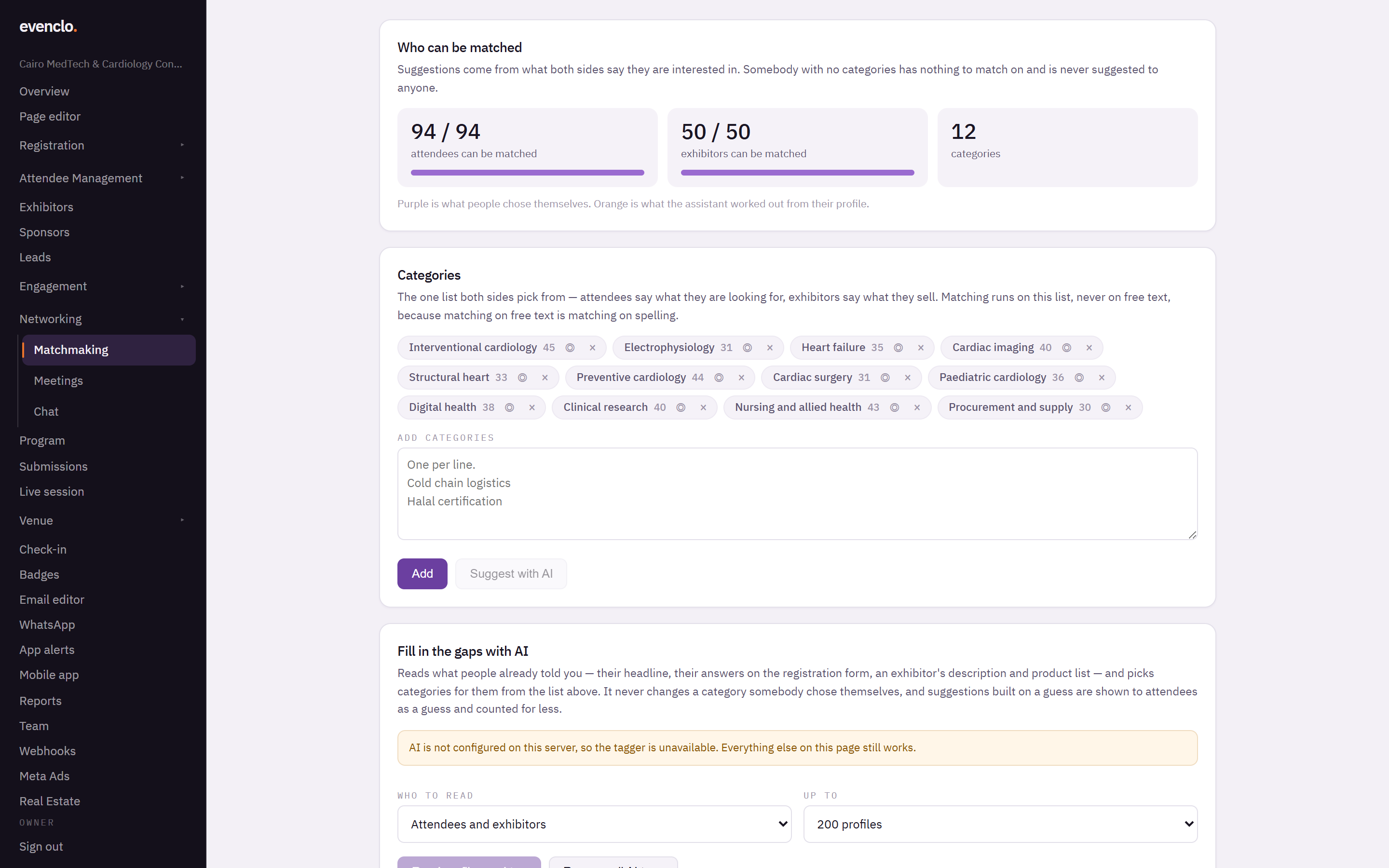
Matchmaking page with coverage numbers, the category list and the AI tagging panel - Under Categories, add the topics your event is about. Type one per line and press Add.
- Ask attendees and exhibitors to pick their categories. Attendees do it in the evenclo app or on the web meetings page; exhibitors do it in their portal. You can also set an exhibitor's categories for them from their record on the Exhibitors page.
Starting from nothing? Suggest with AI reads your event description and drafts a starter list into the box. Nothing is added until you press Add.
Fill in the gaps with AI
Most attendees never open a picker. Fill in the gaps with AI reads what people already told you, such as their job title, their answers on the registration form, or an exhibitor's description and products, and picks categories for them from your list.
- It only chooses from your list. It cannot invent a category.
- It never changes a category somebody picked themselves.
- A guessed category is shown to attendees as a guess ("Likely interested in…") and counts for less than one they chose.
- In the category list, purple marks what people chose and orange marks what the AI guessed.
Choose Who to read and Up to how many profiles, then press Read profiles and tag. Running it again only re-reads profiles that have changed. Remove all AI tags takes every guess back out.
Let AI order the suggestions
With Order suggestions with AI on, an assistant reads each attendee's shortlist and puts the strongest match first, with a sentence saying why. It cannot add anyone to the list or remove anyone: opt-outs, meetings already booked, and the rule that people with nothing in common are never suggested all still apply.
It runs when an attendee opens their suggestions, after the list has already appeared, so a slow answer costs them nothing. It does cost something per attendee who looks, which is why it is off until you switch it on.
Weights
Weights are your thumb on the scale: how much a shared category is worth, how much a shared session is worth, whether an attendee of the same type counts against a match, and so on. Back to defaults puts them back.
Preview
Pick an attendee under Preview and press Show to see exactly what they would be shown, with the reason under each name. Use it to check the matches make sense before you announce the feature.
Common problems
An attendee has no suggestions. They have no categories, or nobody shares theirs. Run Fill in the gaps with AI, or ask them to pick categories.
The AI panels say AI is not configured. The AI features are not switched on for your account. Everything else on the page still works.