Sign in with two-step verification
Owners and admins confirm each sign-in with a 6-digit code from an authenticator app. How to set it up, and what to do if you lose your phone.
Owners and admins can change everything in a workspace, so their sign-in has a second step: after the password, a 6-digit code from an authenticator app on their phone. Someone who learns your password still cannot get in without your phone.
Two-step verification is required for owners and admins. Other roles sign in with their password only.
The first time
The next time you sign in after your role requires it:
- Enter your email and password as usual.
- A QR code appears. Open an authenticator app on your phone — Google Authenticator, Microsoft Authenticator or any other — and scan it.
- Type the 6-digit code the app shows and press Verify.
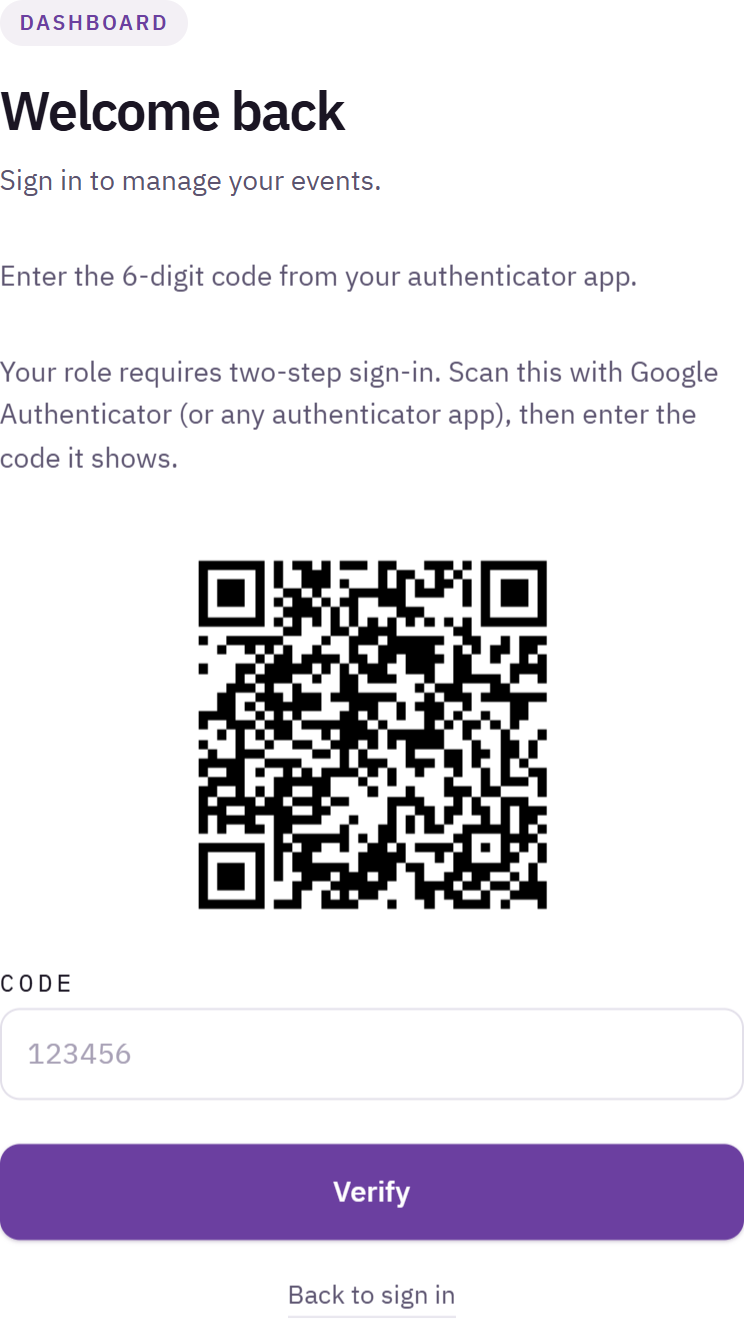
Sign-in screen asking for the 6-digit code, with the QR code to scan the first time
You are now signed in, and the app will show a new code for evenclo every 30 seconds.
Every time after that
Enter your password, then the current code from the app, and press Verify. The code changes every 30 seconds; if one is refused, wait for the next.
If you lose your phone
There are no backup codes, on purpose: a printed list of codes is a second password that can also be lost.
Contact evenclo support. We reset your second factor after confirming who you are.
After a reset, the next sign-in shows a new QR code to scan.
Make sure your workspace has two owners. If one is locked out, the other can keep the team running.
Signing in with your company account instead
If your organisation uses single sign-on, sign in with that instead. It counts as the second step, so you are not asked for a code. See Sign in with single sign-on.
Common problems
The code is always refused. Your phone's clock is wrong. Turn on automatic date and time on the phone and try again.
I scanned the code but deleted the app. Ask for a reset as described above.
What happens next
more in getting started
- What evenclo is, and how it is organizedHow your workspace, your events and your event subdomains fit together — worth five minutes before you build anything.
- Sign in to evencloWhere to sign in, and what to do when the page sends you straight back to the login screen.
- Sign in with single sign-on (SSO)Let your team sign in with your company's Okta, Microsoft Entra or Google account, and how SSO is set up for a workspace.
- Reset your passwordSend yourself a reset link from the sign-in page when you cannot get in.