Help center / Your event website
Show a 3D property explorer
Upload a developer's 3D models, link buildings to unit types, list the units for sale, and let visitors reserve an apartment through your registration form.
For property shows and launches, the 3D explorer lets a visitor click a building to walk into it, open a unit type, look around the model, and reserve a specific apartment. The reservation is an ordinary registration, so the visitor gets the usual confirmation and QR code, and your team sees the unit on their record.
A compound is modelled once and can be shown at any number of events.
1. Create the compound
- Open Real Estate in the sidebar.
- Press New compound, give it a name and a currency, and press Create.
- Add a Description.
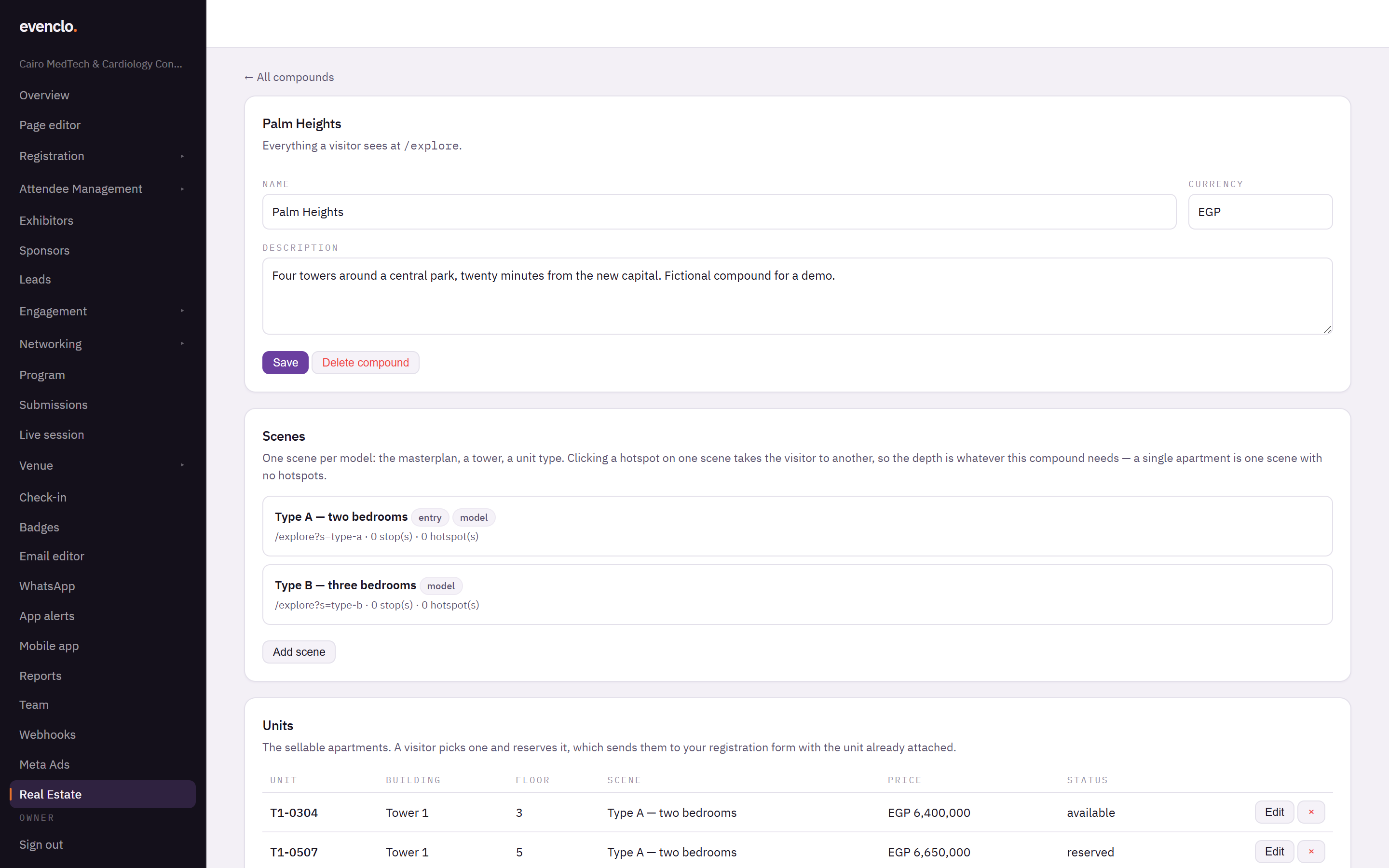
Real Estate page with a compound, its scenes and the 3D model view
2. Add scenes
A scene is one 3D model and everything set up on it: a whole compound, a single tower, or one apartment type.
- Press Add scene, name it ("Tower 3", "Type A") and pick its kind.
- Drop the developer's .glb file onto Model. It is checked, optimised and uploaded in your browser. A model that is far too heavy for a phone is refused with the numbers, before any work is done.
- Fill in the Description, Features (one per line) and Specs that appear beside the model.
Camera stops
Orbit the model to the view you want and press Capture stop. Visitors move between your stops with one tap, so set a few that show the model at its best: an aerial view, the entrance, the balcony.
Hotspots
Press Add hotspot and click on the model — a building, a door — then choose where clicking it goes, such as the "Type A" scene. The same unit type can be linked from several towers without uploading it twice. Use Only show units from this building so the unit list on arrival matches the tower the visitor came from.
3. List the units
Under Units, add each apartment for sale with its Unit code, Building, Floor, which Scene it is, Price and Status (available, reserved or sold). For a long list, use Import price sheet….
Payment terms are the same for every unit in the compound and appear wherever you use {{payment_terms}}.
4. Show it at an event
Under Shown at, pick the event and press Show at this event. This adds a hidden "Interested unit" field to that event's registration form.
Then add the 3D Property Explorer section to a page in the page editor. The section decides how the explorer is framed on the page.
How a reservation works
The visitor picks a unit and presses reserve. They land on your registration form with the unit already attached, register as usual, and get their confirmation and QR code. In your attendee list and the CSV export, the unit code appears on their record.
Common problems
The model is refused. It has far more detail than a phone can draw. Ask the developer for a lighter export of the same model.
Textures look blurry. Large textures are reduced to 2048 pixels during upload so the model opens on phones. Ask for a version with smaller textures if detail matters.
A visitor reserved but no unit shows on their record. The compound is not bound to that event under Shown at.
What happens next
more in your event website
- How the page editor worksPages, sections and the theme — the three ideas behind your public event site.
- The section typesEvery block you can add to a page, and what each is for.
- Add and edit a sectionPut a new block on a page and fill in its content.
- Reorder, duplicate, hide and delete sectionsRearrange a page, reuse a section you already built, or take one off the site without losing it.