Help center / Venue: maps & seating
Plan who sits where
Lay out tables and rows in a room, seat attendees, keep tables for one category, and decide what the public plan shows.
The seating plan is for anything with assigned seats: a gala dinner, a ministerial session, a theatre-style plenary. Each attendee can look up their own seat, and their seat label can be printed on their badge and included in emails.
Add a room
- Open Venue → Seating.
- Press Add a room and name it. A room is one plan: a ballroom of tables, a hall of seat rows, or a mix of both.
- Press + Tables or + Rows to create several at once:- How many and Seats each.- Naming:
Table {n}counts 1, 2, 3…;Row {A}counts A, B, C…. A seat's label is the name plus its number, such as Table 4 seat 3 or S12.- Only for this attendee category, if the seats are reserved — a VIP table can then only be given to VIP attendees. - Drag the tables and rows into place.
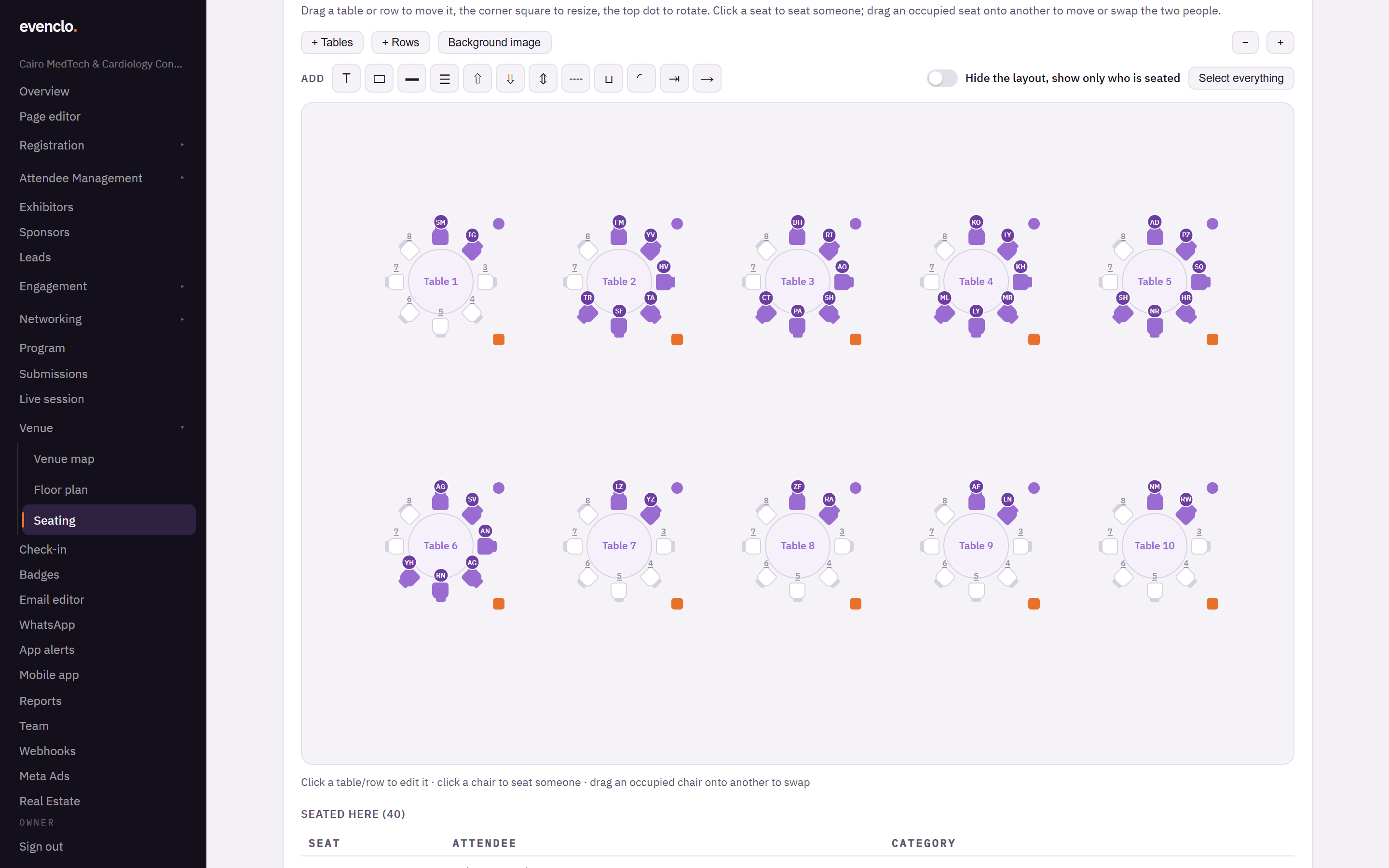
Seating plan with ten tables in a ballroom, seated chairs showing each attendee and empty chairs
Background image puts the venue's own drawing behind the layout, so you can place tables exactly where they stand.
A second "Row S"
Some halls have two blocks that share a row letter. If you create a row with a name you already used, its numbering carries on: a second Row S after a 20-seat one starts at S21. A seat label can never belong to two chairs.
Reading a plan file
Read a plan file takes a PNG or PDF of the room and proposes the rows and tables it finds, drawn in outline. Nothing is saved until you press Insert them, and the inserted items stay selected so you can delete them in one go if the reading was wrong.
Seat people
Click a chair, search for the attendee by name or email, and pick them. To move someone, click their chair and choose someone else, or press Unseat.
The picker only offers attendees allowed at that table, and the same rule is checked again when the seat is saved.
Publish the plan
Under Publishing, switch on Publish the seating plan. This puts the plan on /seating and lets you add a Seating Plan section to any page.
Then choose What the public sees:
- Seat numbers only — the public plan shows which chairs are taken, but no names. Each attendee gets a personal link,
/seating?t=followed by their ticket code, that highlights their own seat. Put{{seat}}in an email to tell each person their seat label. - Everyone's names, like a seating board — every seated person is named on the plan.
Showing the plan and showing people's names are deliberately two separate decisions.
Hide the layout
Tick Hide the layout, show only who is seated for a room to publish just the venue's own drawing with the seated people on it: the boxes, labels and empty chairs disappear, the occupied chairs stay. The editor shows you the same view the public will see.
Common problems
An attendee is not offered for a table. The table is reserved for another attendee category.
The public plan shows no names. What the public sees is set to seat numbers only. That is the safer default.
A seat label is printed on the wrong badge. Check the attendee's seat here; the badge takes its label from the plan.