Help center / Program: agenda & speakers
Give speakers their own page
Email each speaker a link to their own page, where they check their sessions, update their profile, upload slides and ask you for changes.
Every speaker can have their own page. From it they see the sessions they are presenting, keep their own bio and photo up to date, upload their slides, and read how their talk went. You stop being the person who copies a bio out of an email and re-uploads a deck five minutes before the session.
There is no password. A speaker signs in with a link emailed to them.
Send a speaker their link
- Open Program and go to the Speakers tab.
- Make sure the speaker has an Email address. Without one, Send link is greyed out.
- Press Send link on their card.
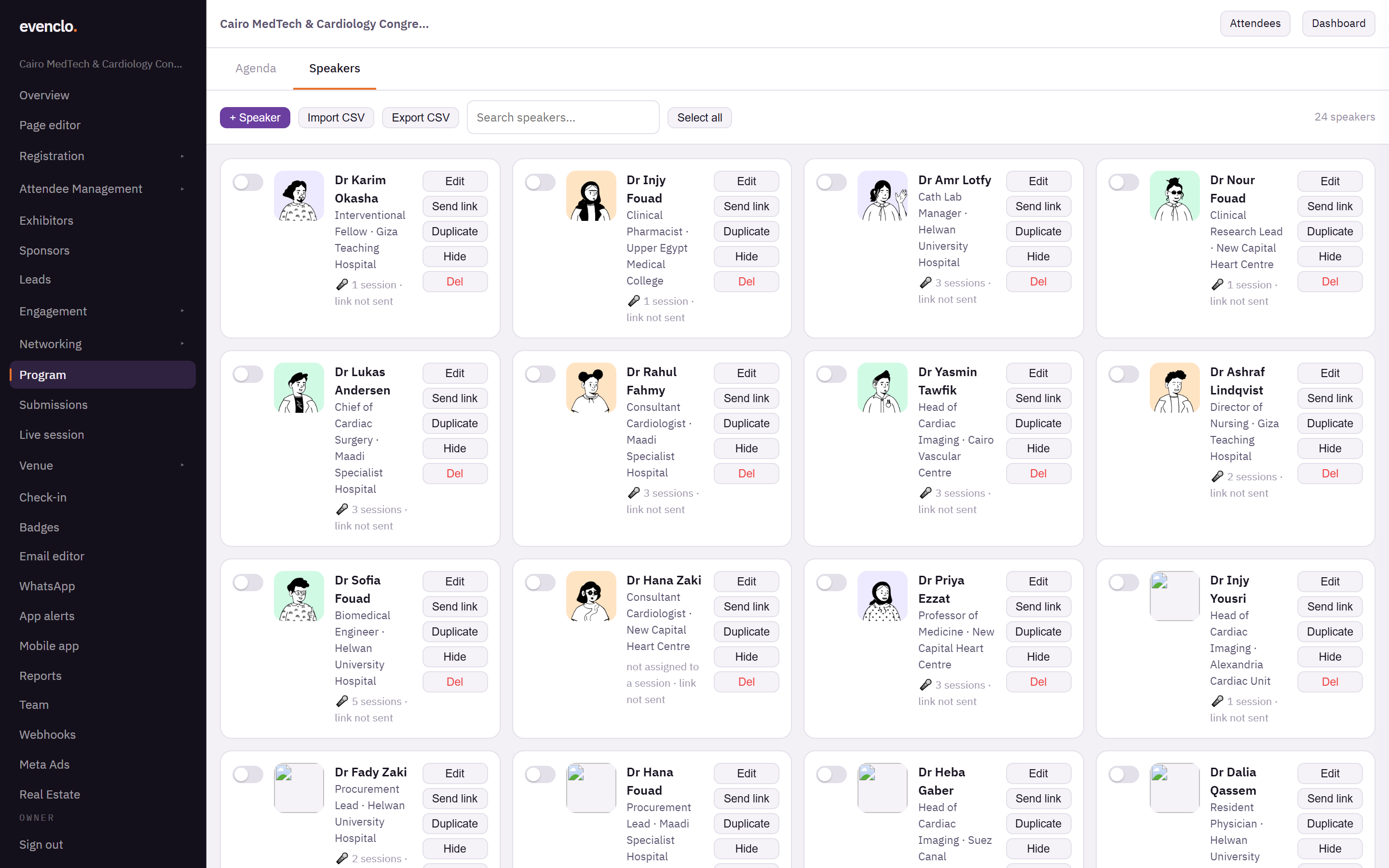
Speakers tab with speaker cards and the Send link button on each
The card shows when the link was sent. Resend link sends a fresh one and the previous link stops working, which is also how you cut off a link that went to the wrong address.
Speakers can also request their own link from the sign-in page by typing their email address. For privacy, that page always says the same thing whether or not the address belongs to a speaker.
What a speaker can do
- See their sessions — titles, times and rooms. These are read-only: a speaker cannot rename a session or move its time, because that would break the printed programme and the agenda.
- Edit their profile — name, title, organisation, bio and photo. It is the same profile you edit on the Speakers tab; whoever saves last wins.
- Upload slides and handouts to their sessions. They appear on the public agenda and in the app straight away, so you never re-upload a deck for them.
- Read how it went — the questions the room saw in live Q&A, and the results of polls and session feedback.
Speakers who are also registered for the event see the same screens inside the evenclo app.
When a speaker asks for a change
A speaker cannot edit a session, but they can send you a note asking for a fix: a wrong title, a missing co-presenter, the wrong room. The owners and admins of your workspace get an email.
Open notes appear at the top of the Agenda tab with the session and the speaker's message. Press Open the session, make the change yourself, and press Done — or Dismiss if no change is needed.
Common problems
The speaker says the link does not work. It was replaced by a newer one, or it expired. Press Resend link.
The speaker cannot see a session. They are not attached to it. Edit the session and switch them on under Speakers.
The slides did not appear. Check the file type: PDF, DOCX, PPTX or PNG, up to 25 MB.
What happens next
more in program: agenda & speakers
- Create and manage tracksGroup your sessions into parallel streams, and duplicate a whole track with a time shift.
- Add a sessionPut a talk, workshop or break on the agenda, with its time, room, capacity and speakers.
- Edit, duplicate, hide or delete a sessionChange a session after publishing, repeat one, or take it off the agenda without losing it.
- Attach handouts to a sessionUpload slides, worksheets and documents so attendees can download them from the agenda.