Help center / Engagement & points
Run the photo wall
Let attendees post photos and short clips inside the app, decide who may post, and moderate what appears.
The photo wall lets attendees take photos and short video clips inside the evenclo app and share them with everyone at the event. Posts are only shown inside the app. Nothing is published anywhere else.
Turn it on
- Open Engagement → Photo hub.
- Switch on Photo hub is on.
- Decide on the two options below, then leave the page open during the event if you moderate.
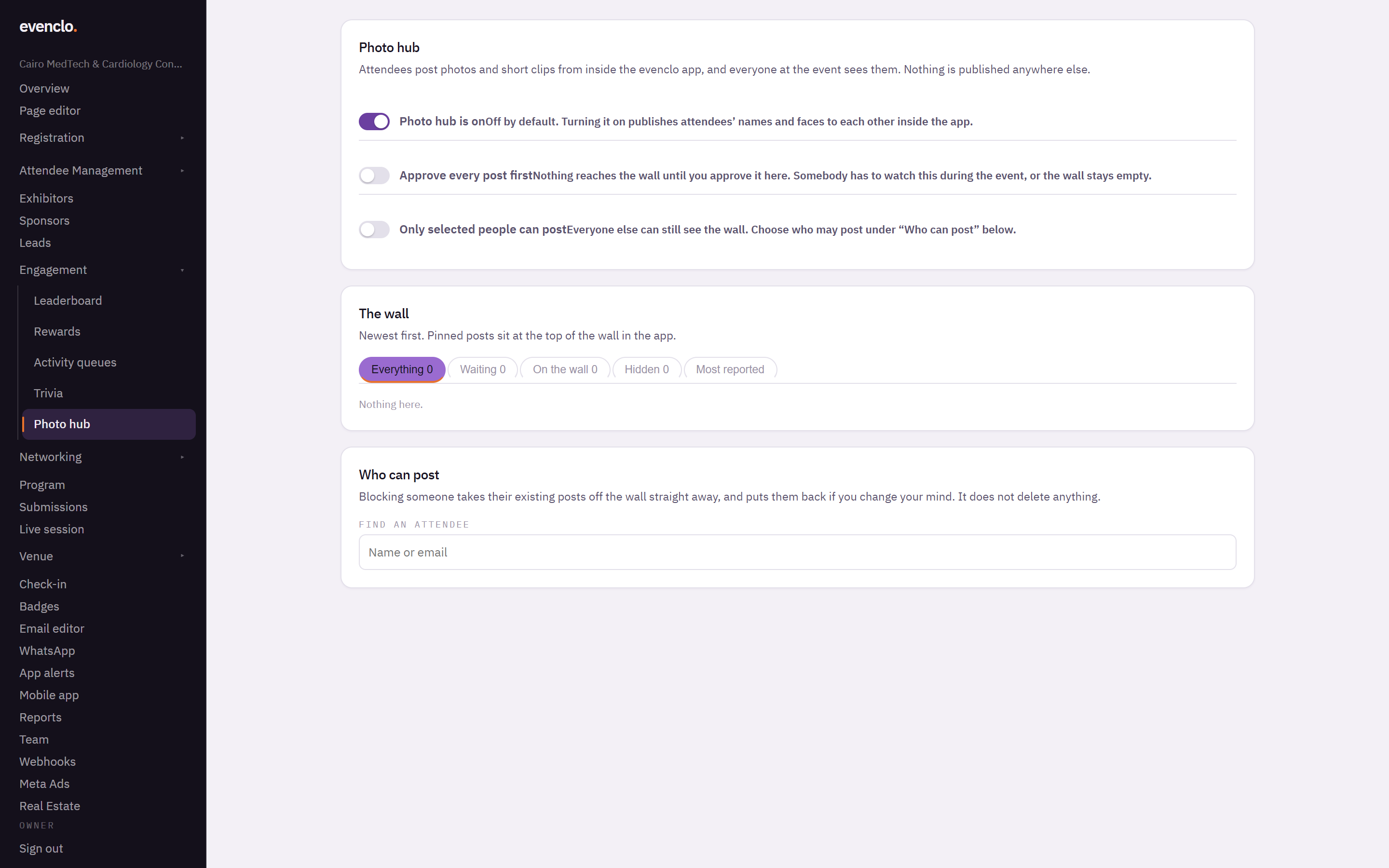
Photo hub page with the switches, the wall filters and the who can post search
The wall is off by default because turning it on shows attendees' names and faces to each other.
Two choices to make first
Approve every post first. Nothing reaches the wall until you approve it on this page. Use it for government events, events with minors, or anything where a wrong photo would be a problem. Somebody must watch this page during the event, or the wall stays empty.
Only selected people can post. Everyone can still see the wall, but only the people you choose under Who can post can add to it. Use it when you want a small team of official photographers.
Moderating the wall
The wall view has filters at the top:
- Waiting — posts that need your approval.
- On the wall — what attendees can see.
- Hidden — posts you took down.
- Most reported — posts attendees flagged, worst first.
You can hide any post at any time. Hiding takes it off the wall but does not delete it, so you can put it back.
Blocking someone
Find the attendee under Who can post and block them. Their existing posts come off the wall straight away and they can no longer post. Unblock them and their posts come back. Nothing is deleted either way.
Limits
Clips are capped at 30 seconds in the app. Photos and clips are stored with your event's other files.
Common problems
Attendees cannot see the wall. The switch is off. The wall appears in the app as soon as it is on.
The wall is empty during the event. Approve every post first is on and nobody is approving. Check the Waiting filter.
What happens next
more in engagement & points
- Score attendees and show a leaderboardTurn on points for what attendees actually do, set what each action is worth, and read the standing.
- Let attendees spend points on rewardsPut perks on the shelf, set what they cost and how many there are, and see who has swapped what.
- Run games and demos at standsGive a stand's game or demo a queue attendees join by scanning, and count who actually took part.
- Push a trivia question to the roomSend a question with three answers and a countdown to every phone, and give points for the right answer.